Refocus Help & FAQ
How To Stop Blocking?
How Do I Use Refocus?
How To Start Blocking?
How To Block Websites?
How To Use Strict Modes?
How To Make Refocus More Restrictive?
What Features Does Refocus Have?
How To Delete Refocus?
Why is Screen Time Data Inaccurate?
Why Am I Having Blocking Or Screen Time Issues? (blocking wrong apps, not blocking when needed, wrong time displayed etc.)
How To Stop Blocking?
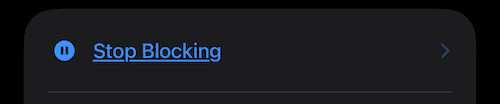
Press “Stop Blocking” in the Refocus home screen, and then press “Stop Blocking” at the bottom of the screen that pops up. Think of it as a “pause.”
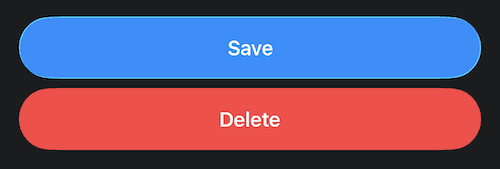
You can also delete a blocking session by tapping it and pressing “Delete” at the bottom. This will permanently stop the block.
⚠️ If the above options don’t stop blocking, see this page for troubleshooting.
How Do I Use Refocus?
The most basic way to use Refocus is:
Block distracting apps all day
Unblock them for a short duration when needed
Repeat
This “inverts” how you use your phone. Instead of opening a distracting application and forgetting to stop (“doomscrolling”), you will have to ask Refocus to unblock for a period of time, and then Refocus will remind you to stop once the period is open. Yes, you can (and will) keep unblocking over and over again. However, event that little friction of having to open a separate app to stop blocking will help you over the long run. Learn more here.
After you get used to that, you can use Strict Modes to make it difficult to unblock.
How To Start Blocking?
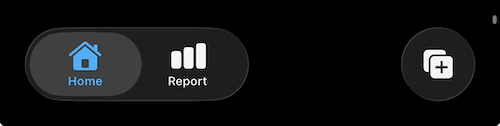
Press “plus” button at the bottom of Refocus
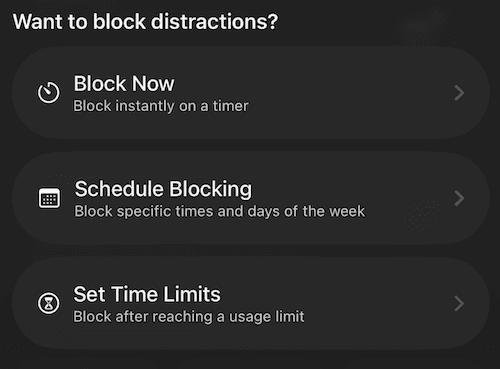
Choose one of the blocking options (the most common is “Schedule Blocking”)
“Block Now” allows you to block immediately for a specific duration (ex. block apps for 30 minutes)
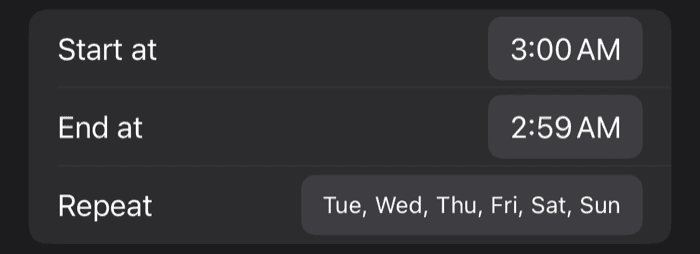
“Schedule Blocking” allows you to automatically block at specific days and times (ex. block apps from 9:00 AM - 5:00 PM, Monday to Friday)
“Set Time Limits” allows you to automatically block once you’ve spent a specified duration on the selected apps (ex. block app after spending 15 minutes on it)
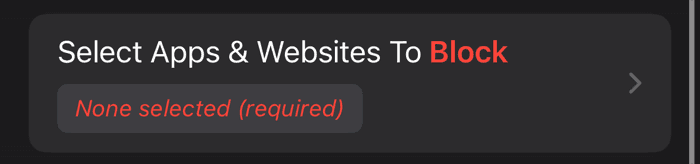
Select apps & websites to block
Configure timing (these options will depend on which option you selected in step [2])
Press “Save” at the bottom
How To Block Websites?
Please click here for directions.
How To Use Strict Modes?
Please click here for directions.
Refocus Is Not Restrictive Enough, How To Make It More Restrictive?
Please click here for directions.
What Features Does Refocus Have?
Please click here to read about some of the Refocus features.
How To Delete Refocus?
When you go to delete Refocus from your device’s home screen, there will be a “Delete Warning” button that will lead you to a page with directions.
Why Is Screen Time Data Inaccurate?
Please click here for more information.
Why Am I Having Blocking Or Screen Time Issues?
Refocus is built on Apple Screen Time technology, and unfortunately it has several issues. Please press here and carefully read whether your specific issue is mentioned. If your issue is not mentioned and you are experiencing something beyond what is listed there, please use the “Contact Us” button in the app. Apologies for the poor experience.